 B2BROKER
 B2CORE
 B2CORE IB
 B2TRADER
 B2CONNECT
 B2TRANSLATE
 B2BROKER
Stop orders
Monitor Stop orders in the Trading terminal
Summary
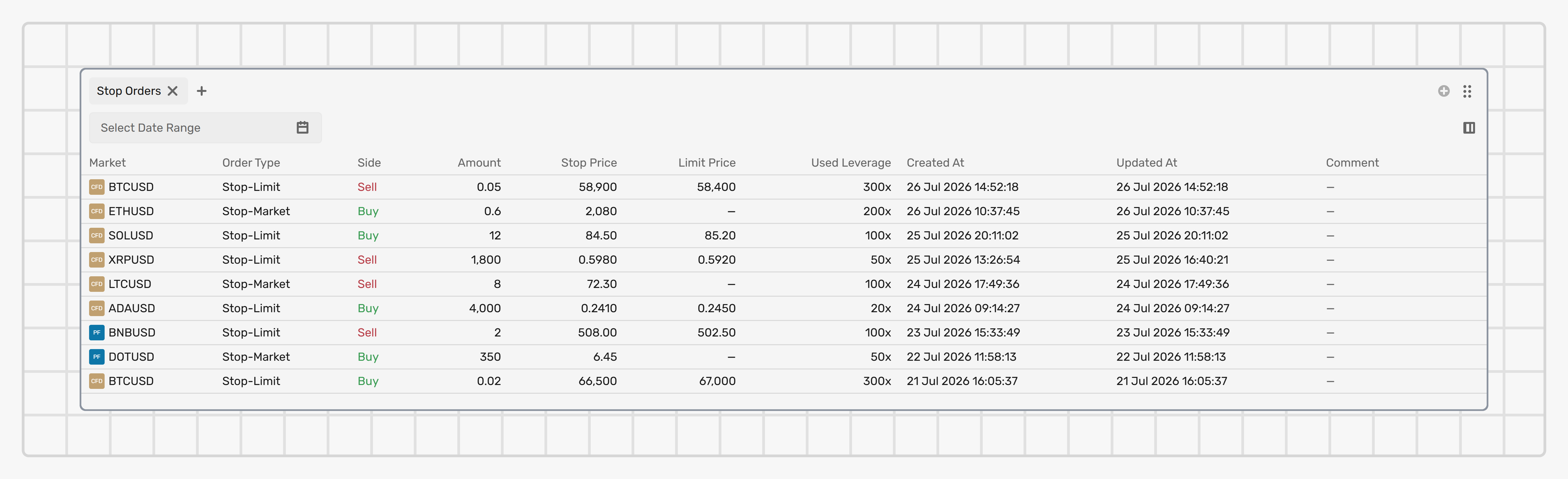
This widget displays a list of untriggered Stop orders created on the selected account.
Once a market price reaches your predetermined Stop price, the Stop order is activated and submitted as either a Market or Limit order. It's then removed from this widget. You can now find it in either the Open orders or Order history widget, depending on its current status.
Stop orders outside trading hours
You can place Stop Market and Stop Limit orders while a market is closed according to its trading calendar, so you can prepare an entry or a protective level before the session opens. This applies to every channel: the Trading terminal, the REST API, the FIX API, and TradingView.
An order placed this way behaves as follows:
- It is accepted right away and appears in this widget with the standard Waiting for activation status. No new status was introduced for orders placed outside trading hours.
- It is validated at placement against the price and amount scales and the market minimum amount. The stop price is also checked against the best bid and ask whenever a price is available — while the market is closed there may be no live price to check it against.
- No balance or margin is reserved at placement. The margin check happens when the order triggers.
- It stays Waiting for activation across sessions until it triggers, you cancel it, or it expires under its Time in force. A Stop order placed on Friday evening is still there on Monday, and an unexpected holiday does not cancel it.
- You can view and cancel it while the market is still closed.
When the session opens, the order is evaluated against the first available price. If the market gapped past your stop price while it was closed, the order triggers at the open. For an order placed while no price was available, the first incoming price is used to finalise the order's internal pricing before it can trigger, so activation can take one extra price update. If the margin check fails when the order triggers, the order is cancelled and you receive the failure reason — it is never dropped silently.
Market and Limit orders are still rejected while the market is closed. Only the two Stop order types are accepted — and the market itself must still be Open: a Paused or Halted market accepts no orders at all, Stop orders included.
Settings
Adjust the time period
By default, the widget lists the Stop Market and Stop Limit orders for all the time. The most recent order appears at the top of the list. To display orders for a specific time period, use the Select date range field.
Configure columns
Click the Configure columns button in the widget header to adjust the displayed information:
- Mark or unmark column checkboxes: To display or hide them; the column checkboxes highlighted in grey can’t be unmarked.
- Drag and drop the columns: To adjust their order in the table.
Fields
The following information is provided about each order:
Market
The market type (Spot, CFD, or Perpetual) and market ticker.
Full name
The market full name or description.
Side
The order side: Buy or Sell.
Order type
The order type: Stop Market or Stop Limit.
Time in force
The Time in force.
Amount
The order amount, in the base currency.
Stop price
The stop price specified when creating an order.
When the market reaches this price, the Stop order will be placed (as a Market or Limit order.
Limit price
The price of a Limit order that will be placed when the Stop price is triggered.
Used leverage
For CFD trading, the leverage ratio used when placing an order.
Created at
The date and time when an order was placed.
Updated at
The date and time of the latest update to the order.
Comment
The text note attached to the order when it was placed. Up to 100 characters. The comment can't be edited after the order is placed.
Order ID
The system identifier of an order.
Last updated on