 B2BROKER
 B2CORE
 B2CORE IB
 B2TRADER
 B2CONNECT

 B2TRANSLATE
 B2BROKER
Own keys
Add project-specific text, import translations for one language, and translate missing text with AI.
Use Own keys for phrases specific to your project, such as a booking confirmation. Open the project, select common, then choose Own keys from the dropdown that normally shows production. The available actions depend on your project access.
Add and edit a key
- Select Add key and enter a unique name, such as
Harbor.Booking.Confirm. - Enter the text in the project's default language. You can also add context, such as “Button shown after a traveler chooses a departure.” Context helps the AI interpret short phrases.
- Select Add key. Above the table, choose the language you want to translate into.
- Edit the Translation field next to Source. Leave the field to save. To clear an existing translation, select Save as empty in that row. The key and its other languages stay available.
The key counter above the table shows how many own keys the project uses. For example, 2 of 500 means there is room for 498 more. At the limit you can still edit existing keys. To add new ones, free up space or contact your project administrator.
Find missing translations
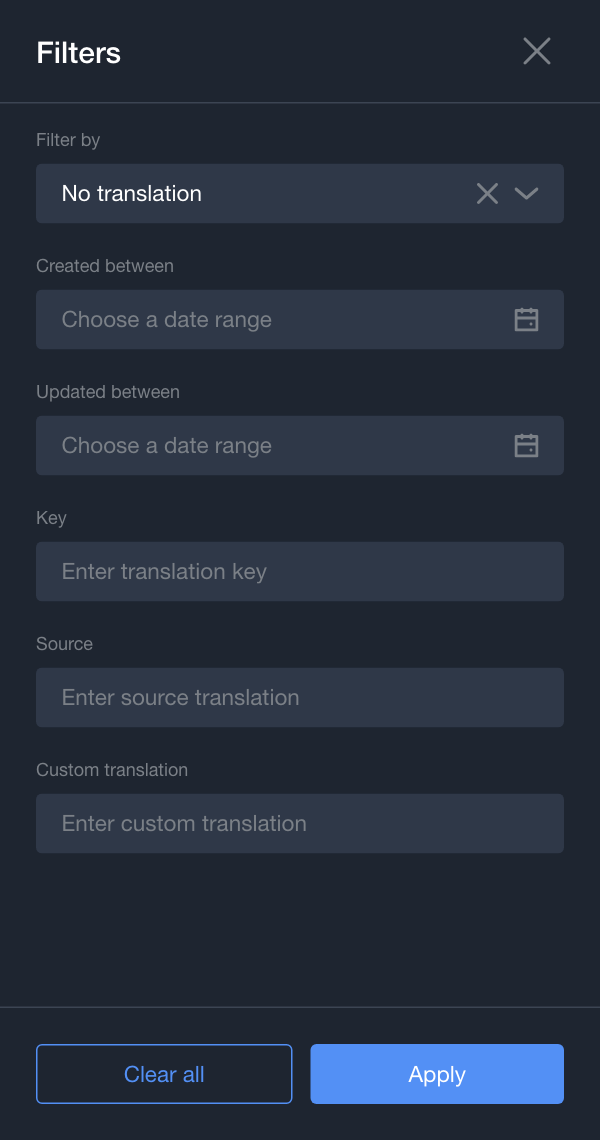
Choose the target language first. Open Filters, select No translation under Filter by, then click Apply. To find keys that still need text in the default language, choose the missing-source option instead. You can also narrow the list by key name, source, translation, or date. Use Clear all to remove the filters.
Import a JSON file
Use one file per language. To create keys, select the project's default language. To add translations for existing keys, select the target language and keep the same key names.
-
Save the following example as
harbor-en.jsonfor a project whose default language is English. Each property name is a key and its value is the text. Keep the object flat.{ "Harbor.Booking.Confirm": "Confirm booking", "Harbor.Booking.Cancel": "Cancel booking" } -
On Own keys, select Import keys in the page header.
-
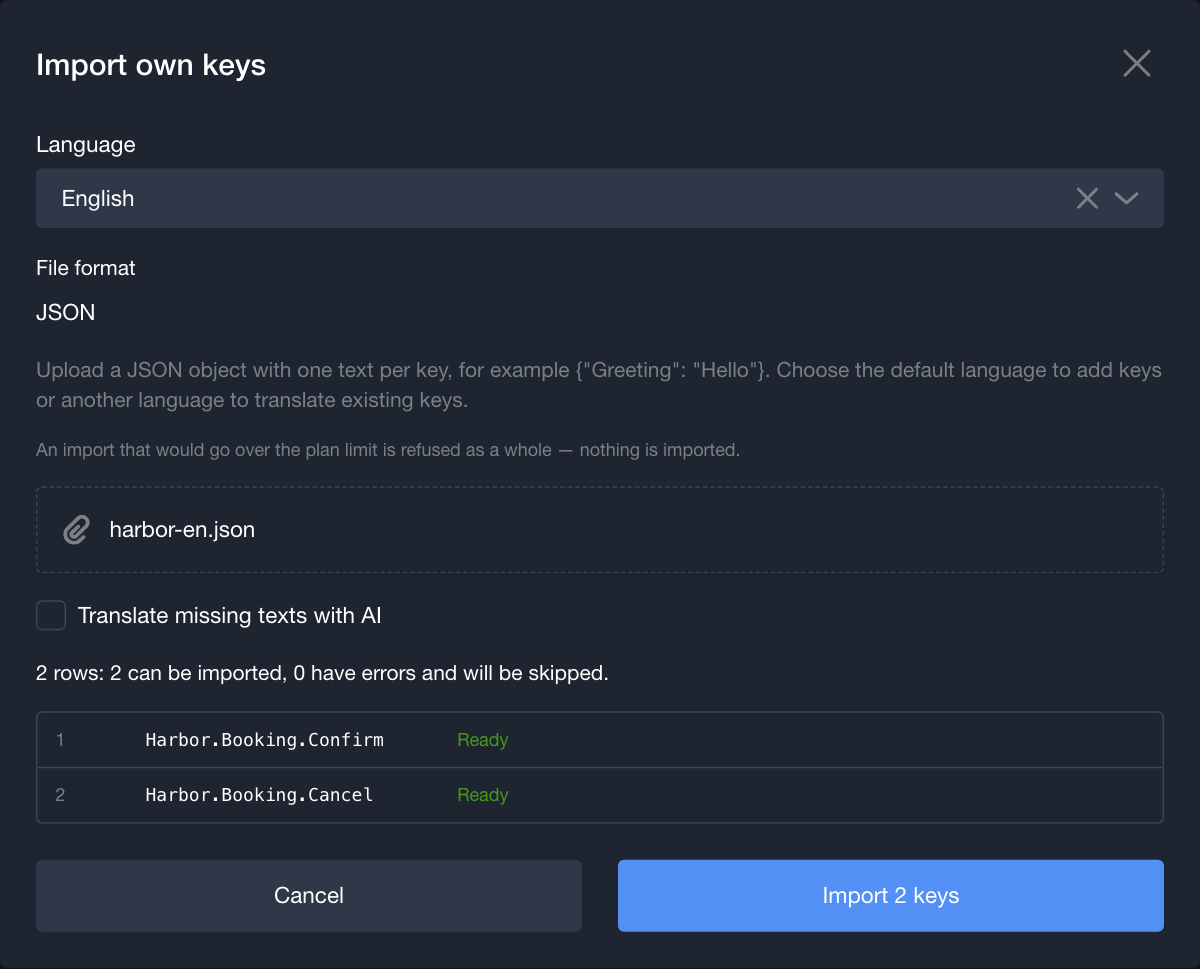
Choose English, then Add file and select your JSON file.
-
Check the preview. It shows which rows are ready and which will be skipped. Correct any errors and select the file again, or confirm with Import 2 keys if both rows are ready. If the import would exceed the project's key limit, the whole import is refused.
To translate the same keys into Spanish, use the following file and choose Spanish in the import dialog.
{
  "Harbor.Booking.Confirm": "Confirmar reserva",
  "Harbor.Booking.Cancel": "Cancelar reserva"
}
Translate missing text with AI
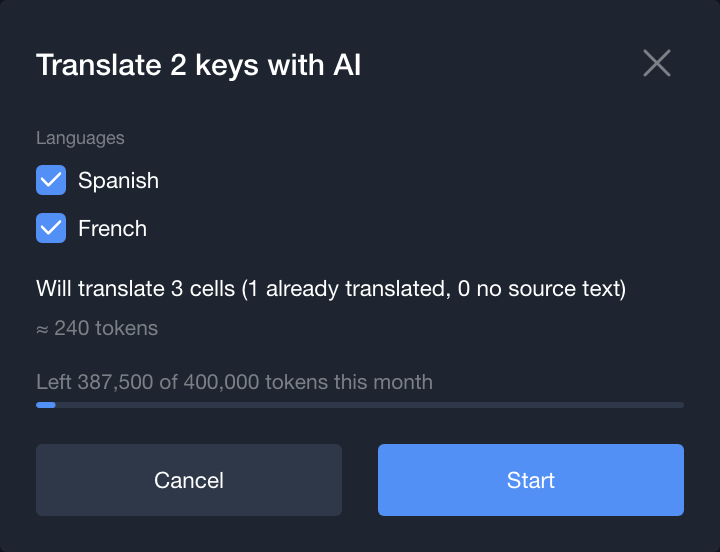
Select the rows to translate, open Bulk actions, and choose Translate with AI. Select the target languages. The preview counts each key and target-language pair as one cell. It skips cells that already have a translation and keys that have no source text.
Compare estimated tokens with the balance before selecting Start. For example, two keys across two target languages give four possible translations. If one already exists, the job translates three.
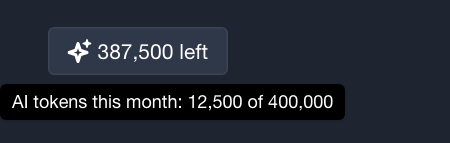
The badge in the keys page header shows how many AI tokens are left. Hover over it to see usage against the current budget. If the estimate exceeds the available balance, select fewer keys or languages and check the new estimate.
Edit plural forms
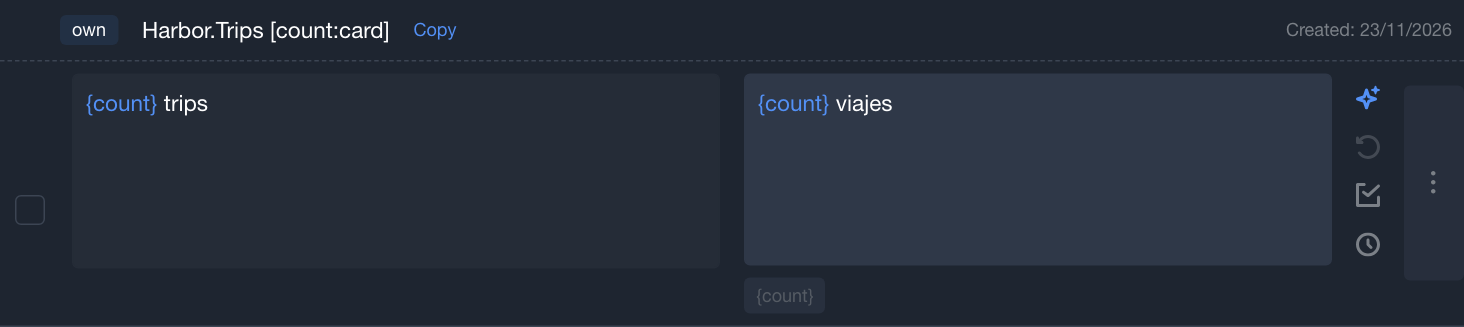
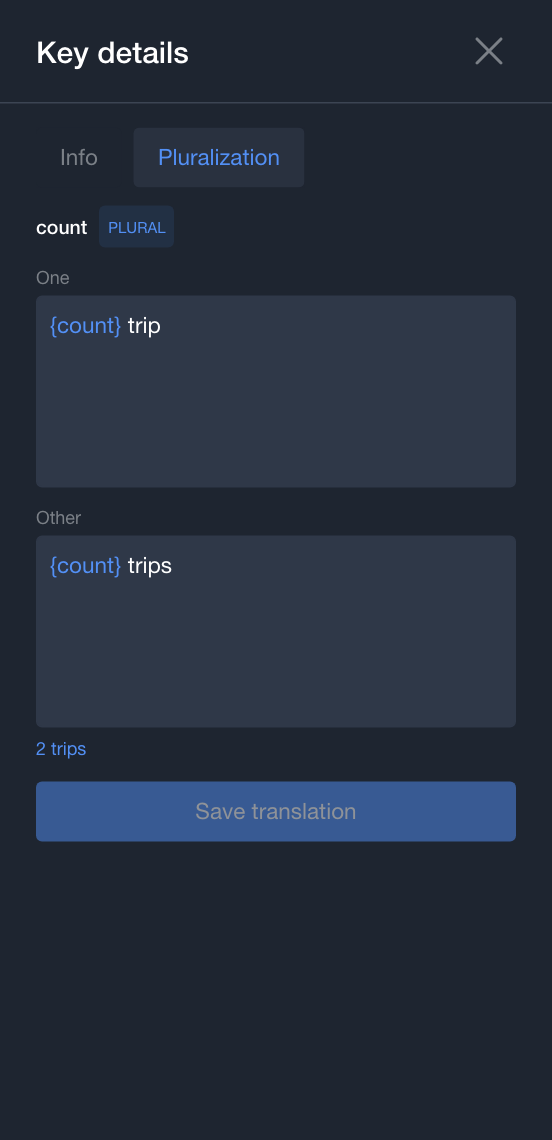
Choose the language, open the key's three-dot menu, and select Pluralization. For example, Harbor.Trips [count:card] uses a cardinal number. In English, enter {count} trip under One and {count} trips under Other, check the preview, and select Save translation. For positions such as “1st” or “2nd”, use an ordinal variable such as [place:ord]. The available forms depend on the language and variable type.
See Handle plural forms for more examples.
Last updated on