 B2BROKER
 B2CORE
 B2CORE IB
 B2TRADER
 B2CONNECT
 B2TRANSLATE
 B2BINPAY
 B2BROKER
Manage your account
Manage your B2TRANSLATE account — change your password, create personal API tokens, view notifications, and switch the interface language
Your personal controls in B2TRANSLATE are grouped in two places:
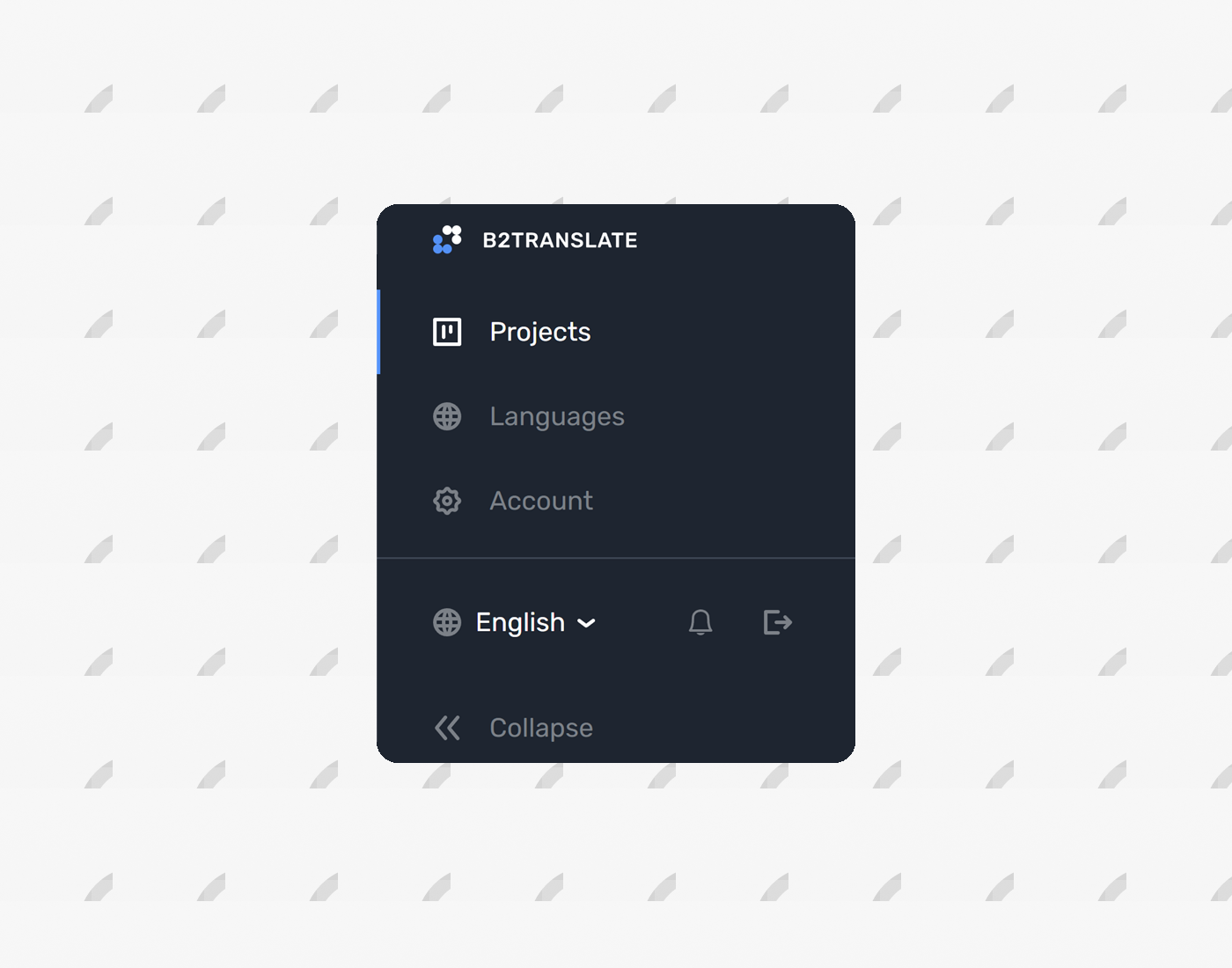
- The Account page, opened from the gear icon in the sidebar, where you change your password and manage personal API tokens.
- The control row at the bottom of the sidebar, where you switch the interface language, open your notifications, and sign out.
Open your account settings
To open your account settings, click Account (the gear icon) in the sidebar. The Settings page opens with two tabs:
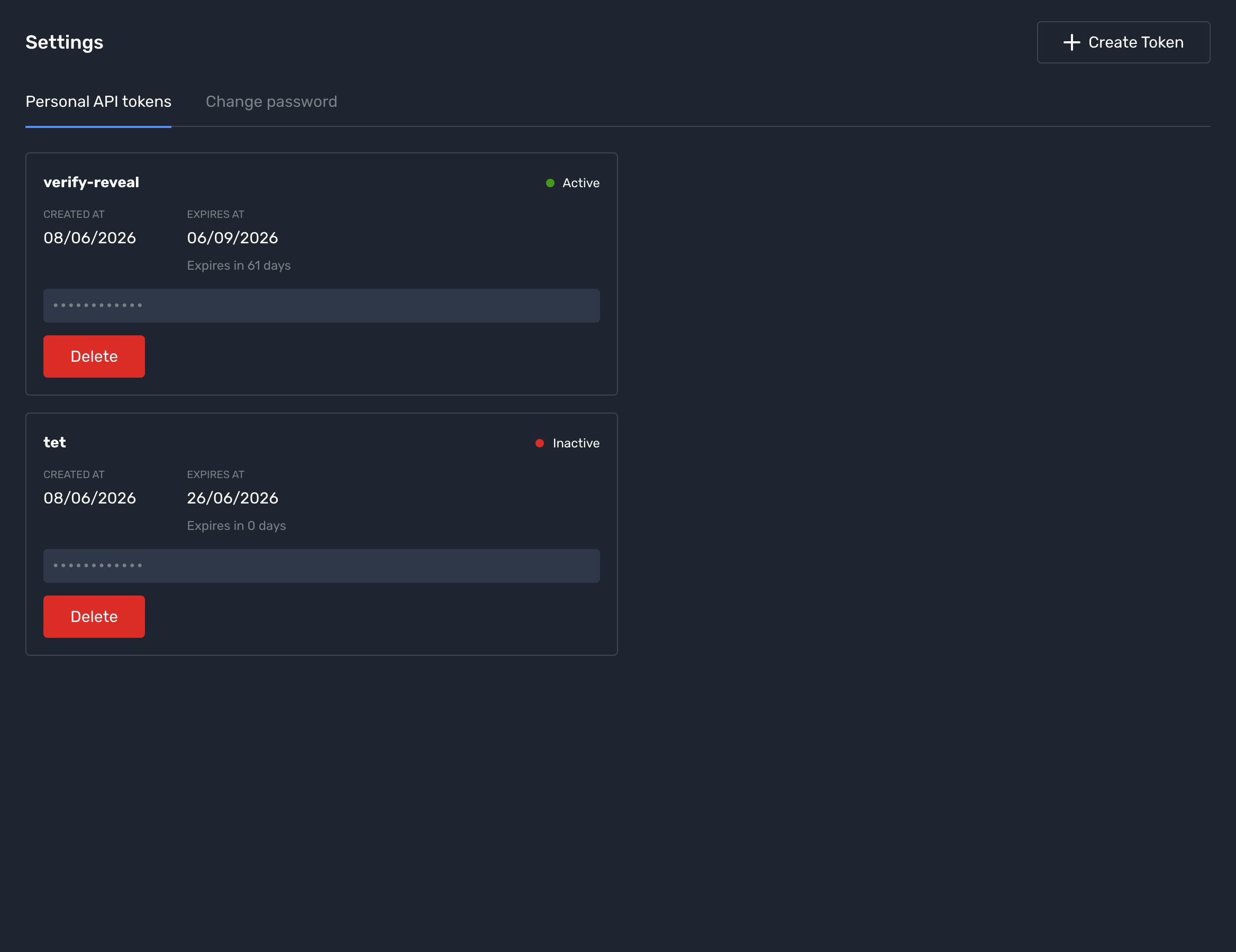
- Personal API tokens — create and revoke tokens for programmatic API access.
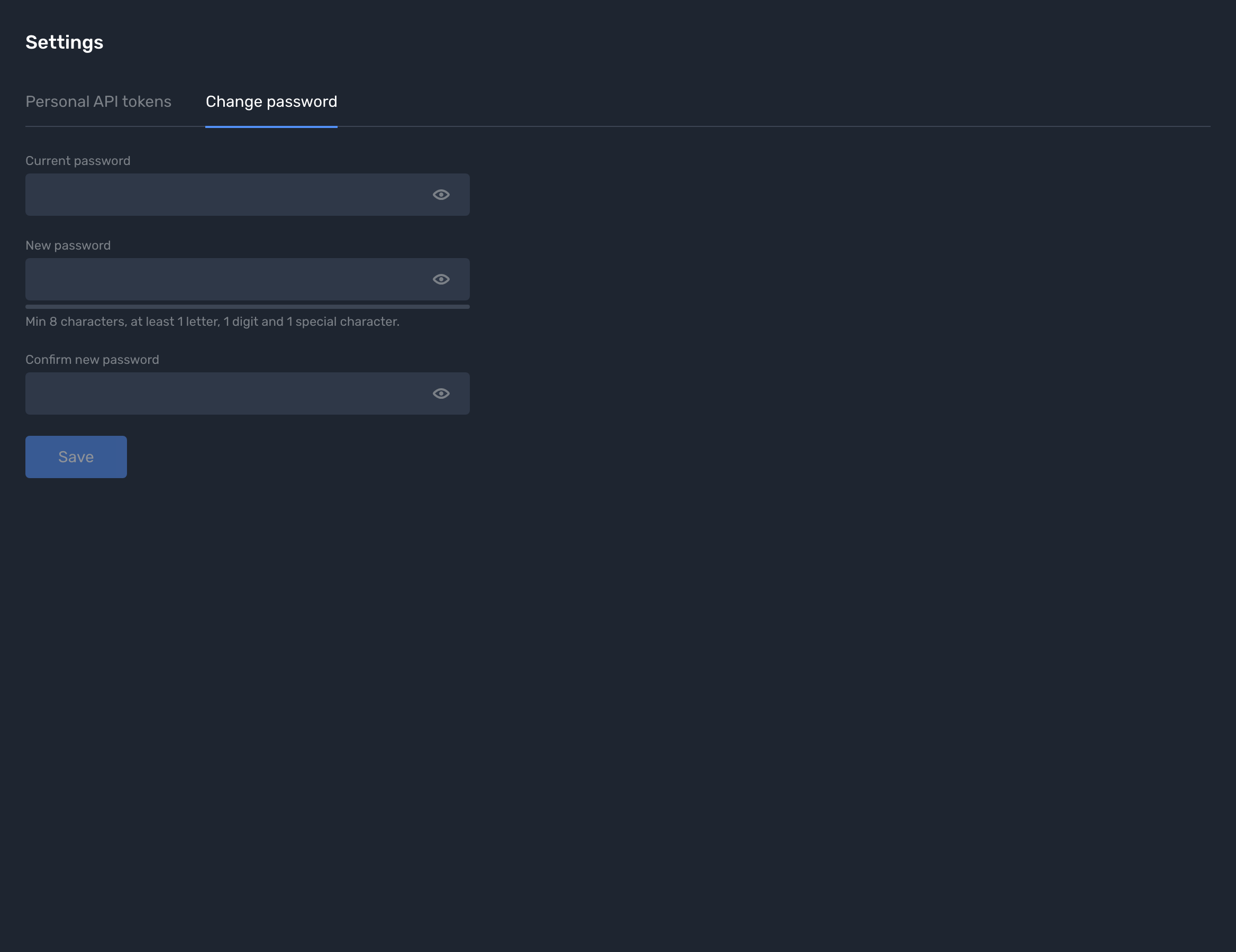
- Change password — update the password you use to sign in.
These settings apply to your own account only.
Change your password
Open the password form
Go to Account > Change password.
Enter your passwords
Enter your Current password, and then enter and confirm your New password. A strength meter indicates how strong the new password is.
Save the change
Click Save. You'll use the new password the next time you sign in.
The new password must meet the following requirements:
- At least eight characters long
- At least one letter, one digit, and one special character
- Different from your current password
If the Current password you enter is incorrect, B2TRANSLATE reports an error and the password isn't changed.
Manage personal API tokens
Personal API tokens are an authentication method for programmatic access to the B2TRANSLATE API, useful for integrations and automation workflows. A token acts on your behalf, so you don't need to share your sign-in credentials.
Personal API tokens have moved from the former profile menu to Account > Personal API tokens.
Create a token
Open the tokens tab
Go to Account > Personal API tokens, and then click Create Token.
Name the token and set the expiration
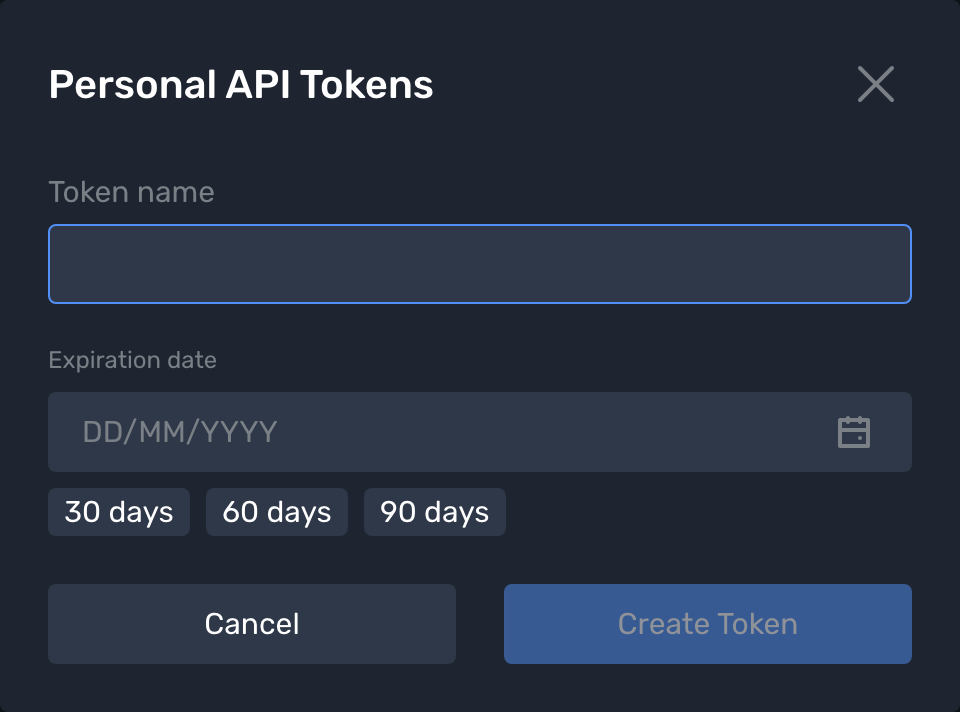
Enter a Token name that helps you recognize where the token is used. Set an Expiration date with the calendar, or click one of the quick options — 30 days, 60 days, or 90 days.
Copy the token
Click Create Token. The token value appears once. Copy it and store it in a safe place.
The token value is shown only once and can't be retrieved later. If you lose it, delete the token and create a new one.
Revoke a token
To revoke a token you no longer need, find it in the list on the Personal API tokens tab and click Delete. Any integration that uses the token stops working immediately.
View your notifications
B2TRANSLATE keeps you informed about background events — such as a finished AI translation, a ready export, or a completed import — through the notification bell at the bottom of the sidebar.
- A red badge on the bell shows the number of unread notifications.
- To see your most recent notifications, click the bell.
- Mark a notification as read to clear it, or click Mark all as read to clear them all at once.
- When you have more than five notifications, click All notifications to open the full history.
Besides the in-app bell, notifications can also be delivered to Email, Slack, or Telegram. A workspace administrator configures these delivery channels and chooses who receives each type of event.
Change the interface language
B2TRANSLATE is available in multiple languages. To change the language of the interface, click the language selector (the globe icon) at the bottom-left of the sidebar, and then select a language from the list. Your choice is saved for the next time you sign in.
Sign out
To sign out, click the log-out icon at the bottom of the sidebar. B2TRANSLATE ends your session and returns you to the Sign in page.
Zuletzt aktualisiert am