 B2BROKER
 B2CORE
 B2CORE IB
 B2TRADER
 B2CONNECT
 B2TRANSLATE
 B2BINPAY
 B2BROKER
B2TRANSLATE pencil
Activate editing mode in your WebUI to effortlessly locate and identify translation keys. Follow these steps to highlight translations and copy keys
In this article, you'll learn how to enable the editing mode in the WebUI of your product. This feature will help you easily find out the identifier of any translation key on a page.
Activate the editing mode
You can activate the editing mode on any page of your product WebUI:
In the browser address bar, append ?showTranslateEditor=true to the page URL and press Enter.
You will see the corresponding notification at the top of the page.
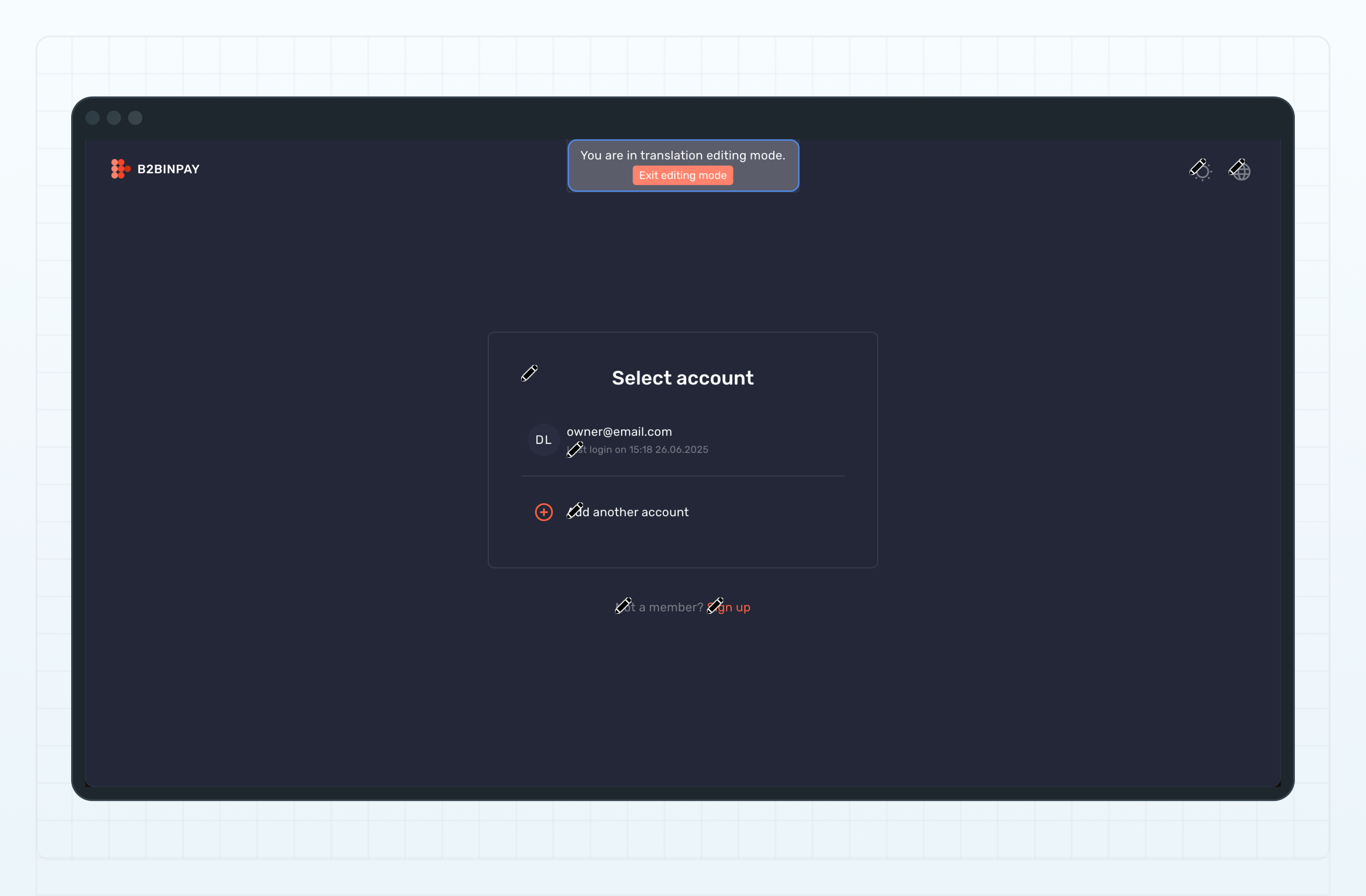
You can switch between WebUI pages: the editing mode remains active until you disable it by clicking the Exit editing mode.
Copy a key
In this mode, all available translations on the page are marked with pencil icons. Note that elements not shown by default will become visible when hovered over.
Select a translation you want to edit and click the pencil icon near it to copy its key to the clipboard.
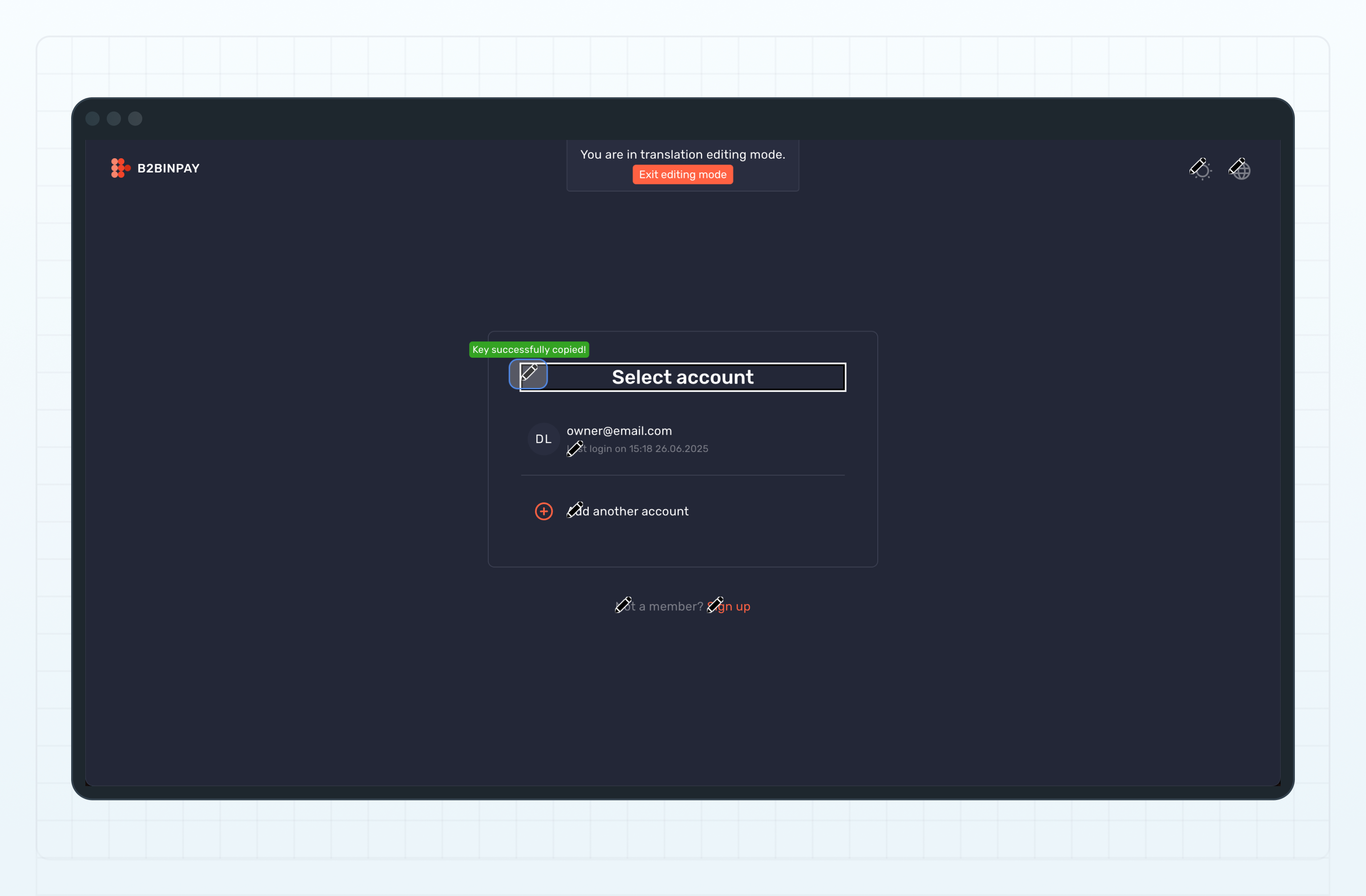
Locate the key
- In B2TRANSLATE, on the Projects page, select your project.
- Click the magnifying glass icon and paste the copied value to the search field.
The key list will be automatically filtered by the key identifier.
Now you can edit the translation. Refer to Add or modify translations for details.
Dernière mise à jour le