 B2BROKER
 B2CORE
 B2CORE IB
 B2TRADER
 B2CONNECT
 B2TRANSLATE
 B2BINPAY
 B2BROKER
Download and upload translations
Export translations to a CSV file, edit externally, and then upload back to B2TRANSLATE for quicker bulk updates
Export translations to a CSV file
- On the Projects page, click the project name.
- From the language dropdown above the table, select a required language.
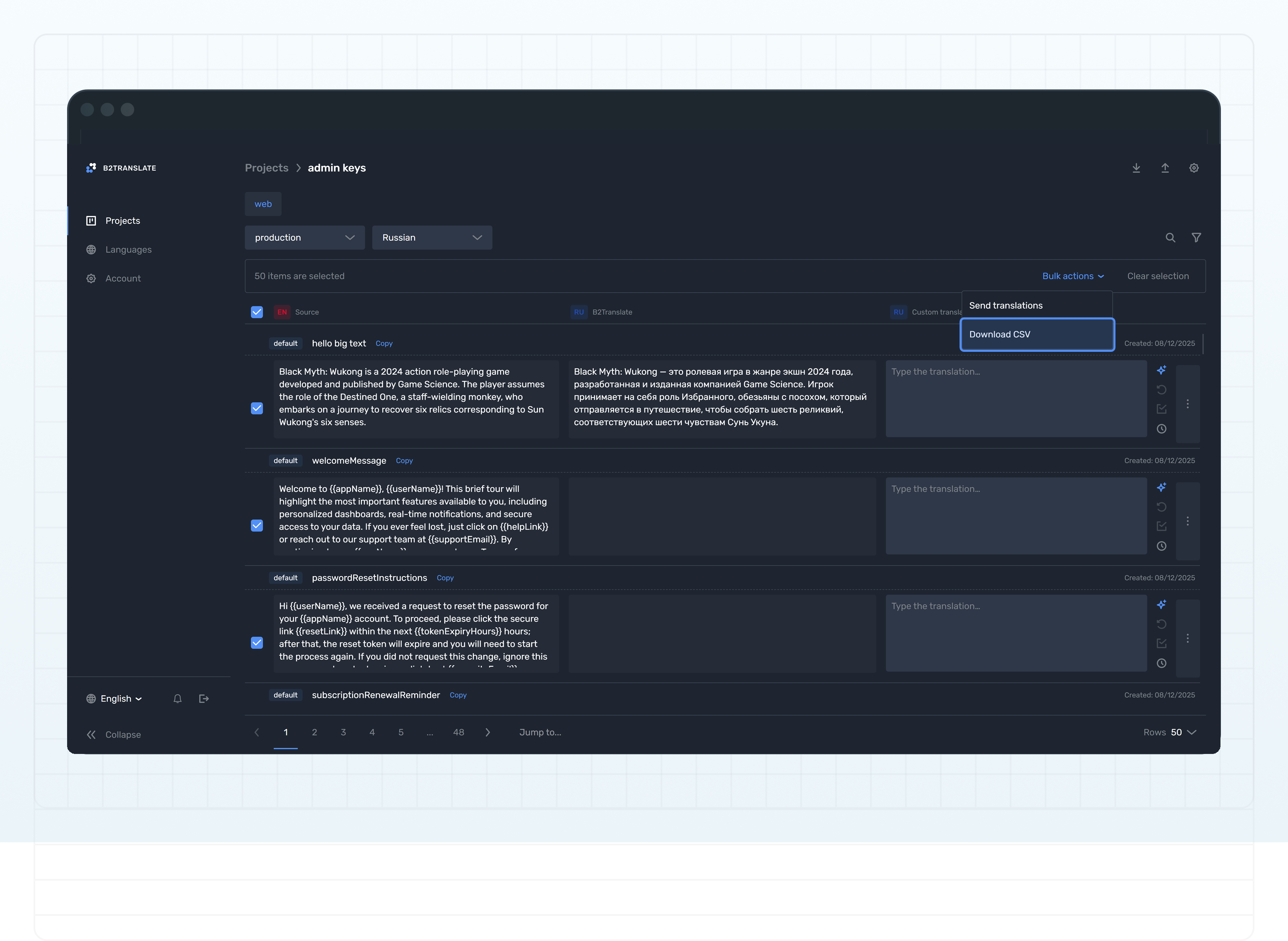
- Mark the checkboxes for the keys that you want to copy. Mark the upper checkbox to select all.
- From the Bulk actions dropdown appearing above the table, select Download CSV.
Alternatively, you can download all project keys:
- On the Projects page, select a project and click the three dots.
- Select Download CSV.
- Select a required platform (if applicable) and language.
- Click Download.
The CSV file will be downloaded to your computer.
Edit translations in the CSV file
Mind the following:
- Edit only values in the
translationcolumn. - Only a comma (
,) or a semicolon (;) can be used as a separator. Attention: If you use Pages by Apple Inc. to edit your file, it may sometimes add extra semicolons to the first row, potentially affecting file upload. - For multi-word translations containing spaces, use quotes (
"My new translation"). - If there is no
originalDefaultTranslation, then the custom translation is always ignored. - If the
languageDefaultTranslationand the custom translation are the same, then the custom translation is ignored. - In other cases, the custom translation is updated.
Import the CSV file
-
Get back to the translation page of your project.
-
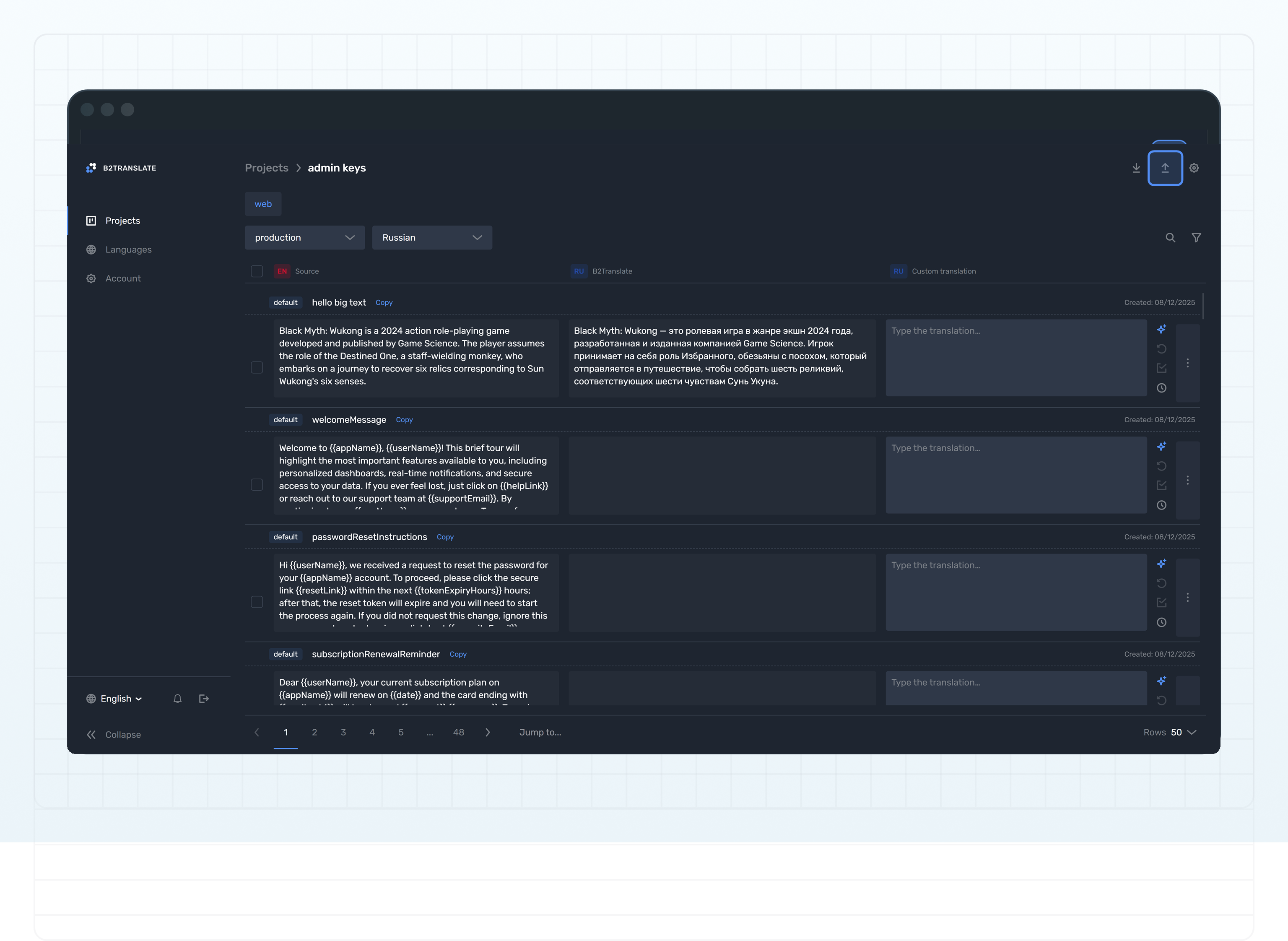
Click Upload CSV in the page header.
-
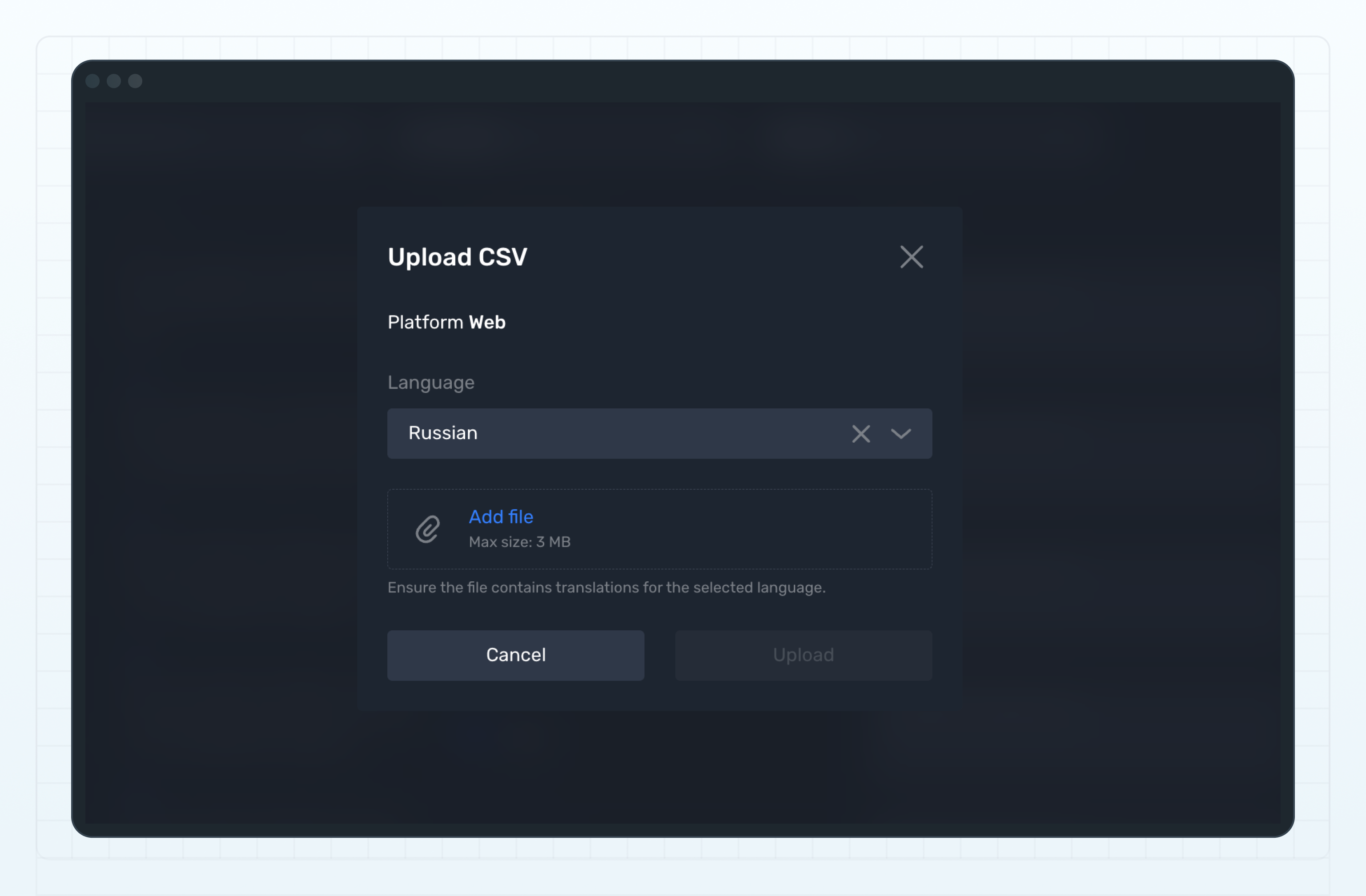
Select a required language.
-
Drag and drop the file into the upload area or click Add file to select the file from your computer. The maximum allowed file size is 3 MB.
-
Click Upload.
-
Refresh the page to see the translations uploaded.
Alternatively, you can upload the file from the project list:
- On the Projects page, select a project and click the three dots.
- Select Upload CSV.
- Select a required platform (if applicable) and language.
- Drag and drop the file into the upload area or click Add file to select the file from your computer.
- Click Upload.
Last updated on